Broken Link Checker
Paste a page's source or a list of URLs to check every link's status and find broken ones.
How this check works: our server sends one ordinary GET request per redirect step (at most 10) to the public address you enter, the same request a browser would make, and shows you a short summary — status codes, selected response headers and, for robots.txt, the file itself (up to 64 KB). It never sends data on your behalf, never contacts private or internal addresses, and does not log or store what you type; results are cached for 10 minutes and each visitor can run 10 checks per minute.
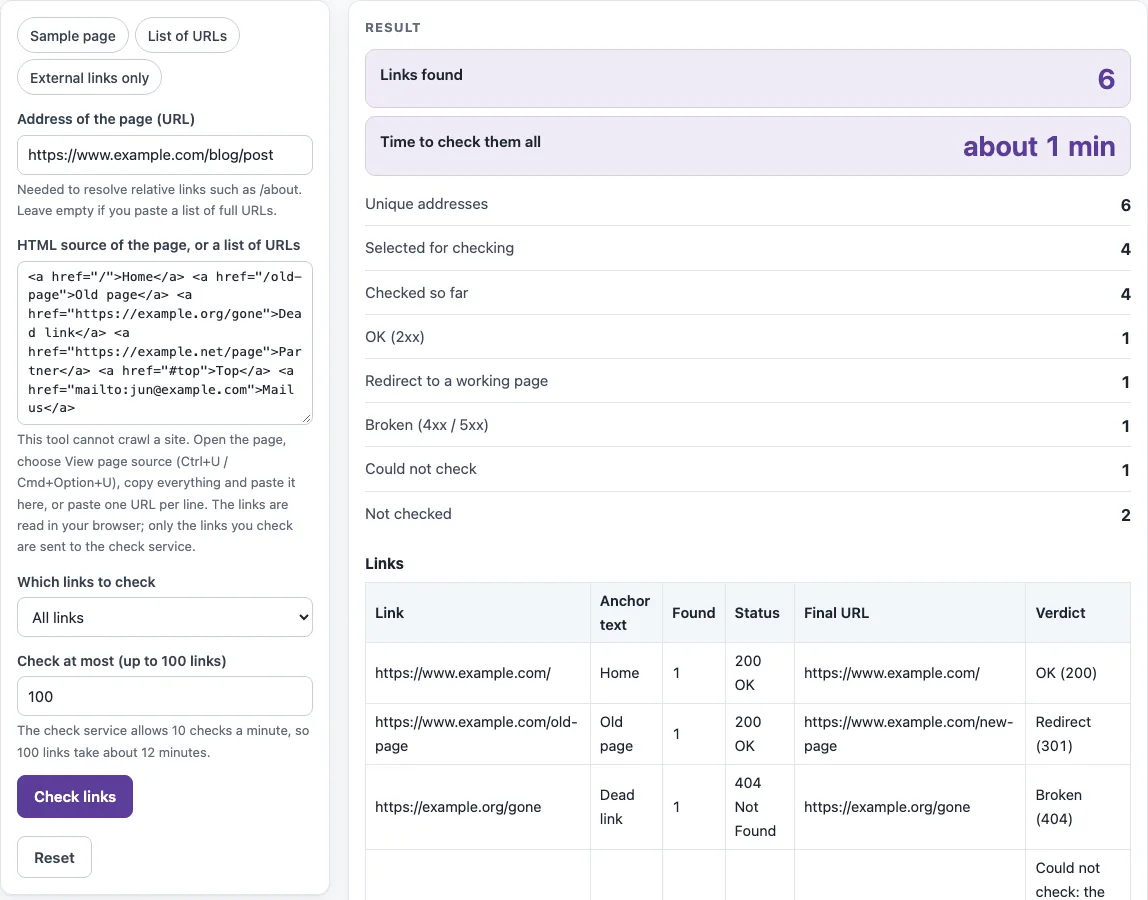
How to use the broken link checker
- Open the page you want to check, choose View page source, and copy all of the HTML.
- Paste it into HTML source of the page, or a list of URLs. You can paste one URL per line instead.
- Enter the page’s full address in Address of the page (URL), so relative links such as /about can be turned into full addresses.
- Under Which links to check, choose All links, Internal links only (same host, ignoring www.), or External links only.
- Set Check at most (up to 100 links).
- Press Check links. Watch the “Checking n of N” progress and the countdown. Press Stop to end the run early.
- Read the Links table, especially the Verdict column, and the Broken (4xx / 5xx) count in the results.
- For any redirect, take the address shown in Final URL and use it to update the link.
- Press Results as CSV to copy the results or download link-check.csv.
The presets Sample page, List of URLs and External links only are there for a quicker start.
Keep the tab open until “Checked so far” reaches the number selected. Each link is requested once, however many times it appears in the source, and a run you end with Stop keeps the results it already has.
How do I find broken links on my website?
Paste the HTML source of one page, enter its address, and press Check links. Broken links appear with a verdict of Broken (404) or Server error (503), and you then fix or remove them. Repeat this for each page, because the tool cannot find pages on its own. It reads every <a href> in the source, removes duplicates, and requests each unique address once, even if it appears many times; the Found column shows how often each one appears.
Can it crawl my whole site?
No. The check service never returns page content, so the tool cannot discover a site’s pages and checks only the links of the page you give it. For a whole site, take the source of each page one at a time, or use List of URLs with the addresses from your sitemap. Each run is limited to 100 links.
What counts as a broken link?
A link is broken when its final response is a 4xx or 5xx status code, such as 404 Not Found, 410 Gone, or 500 and 503 server errors. The tool shows Broken (404) for 4xx responses and Server error (503) for 5xx responses. A link shows OK (200) when its final response is 2xx without any redirect. Fixing broken internal links matters because visitors who click them land on an error page, and Google does not use the content of 4xx URLs.
Why is a working link shown as broken?
Some servers answer automated requests differently from a browser. They may block requests, apply rate limits, or return 403 or 429, so a link can look broken here while it works for people. Links that need a login can fail for the same reason. Open the link in a browser to confirm before you change anything. Problems such as a timeout or a DNS name that does not exist appear as Could not check rather than Broken.
How long does it take?
Expect about one minute for every 9 links. The service allows 10 checks a minute per visitor, and the page starts at most 9 in any 60 seconds. So 50 links take about 6 minutes and 100 links take about 12 minutes. The results show Time to check them all, and a countdown runs while the tool waits for the limit.
Are redirected links a problem?
A redirect is not a broken link: if it ends in a 2xx response, it appears as Redirect (301) or Redirect chain (n hops). Each hop adds another request, though, so update the link to the address in Final URL. The service follows up to 10 hops; a longer path gets the verdict Too many redirects, and a path that returns to itself gets Redirect loop.
Are links to #section or mailto: checked?
No. Links to a spot on the same page (#), mailto:, tel:, javascript:, empty links, and other schemes such as ftp: or data: are listed under Not checked, each with its reason. Relative links are also skipped when no page address has been entered. #fragments are removed from other links before they are checked.
Sources (checked 13 October 2026): RFC 4180 · Google Search Central
Worked examples
| Input | Result |
|---|---|
| 6 link(s) | 4 selected, about 1 min |
| 4 link(s) | 4 selected, about 1 min |
| 2 link(s) | 1 selected, about 1 min |
Calculated by the tool above; open it with the same values to see each step.
Frequently asked questions
Is the HTML I paste sent to a server?
No. Pasted HTML is processed in your browser and is never sent. Only the addresses of the links you choose to check go to this site’s own read-only check service, and results are cached for 10 minutes. Nothing is stored.
Do I need to sign up?
No. The tool is free and has no sign-up.
Can it check links on an intranet or localhost?
No. The check runs from the service’s network, so intranet and localhost addresses are refused. Only public http(s) addresses on ports 80 and 443 are accepted, and IP addresses and user:password@host are refused.
Will it find error pages that return a 200 status?
No. A soft 404 is an error page served with a 200 status, and this tool cannot detect it. Check the page content in a browser if you suspect one.
What does “Could not check” mean?
It means the tool did not get a usable answer, for example because of a timeout, a DNS name that does not exist, or a private host. These rows are not counted as Broken, so look at the reason shown before you decide what to do.
What columns does the CSV file contain?
The CSV has these columns: Link, Anchor text, Found, Status, Final URL, Verdict, and Redirects. It follows RFC 4180.
Related tools
- Redirect checker — use it to follow the redirect path of a single address.
- Bulk redirect checker — use it when you have many old addresses and need to see where each one redirects.
- Trailing slash checker — use it when the same page may be reachable with and without a closing slash.
- Canonical tag checker — use it to see which address a page declares as its canonical.
- Noindex checker — use it to check whether a page asks search engines not to index it.
- Sitemap finder — use it to find a sitemap address for building a URL list across a site.