Open Graph Checker
Paste a page's source to check its Open Graph tags and preview how a shared link may look.
The Open Graph checker reads the Open Graph tags in a page’s HTML and reports whether the four required properties are present, which share card values the page declares, and how the image preview will look. Paste your page source and the results appear in your browser. It is free and needs no sign-up.
Open Graph tags are meta elements that tell social networks and messaging apps which title, image and description to show when someone shares a link. A missing or wrong tag can turn a rich card into a plain link, so checking the source before you publish saves guesswork. The checker looks at og:title, og:type, og:image, og:url, og:description, twitter:card and the other properties in the head of the page. Use it as an og tag checker or og image checker, and check og image values against the size the image actually loads at.
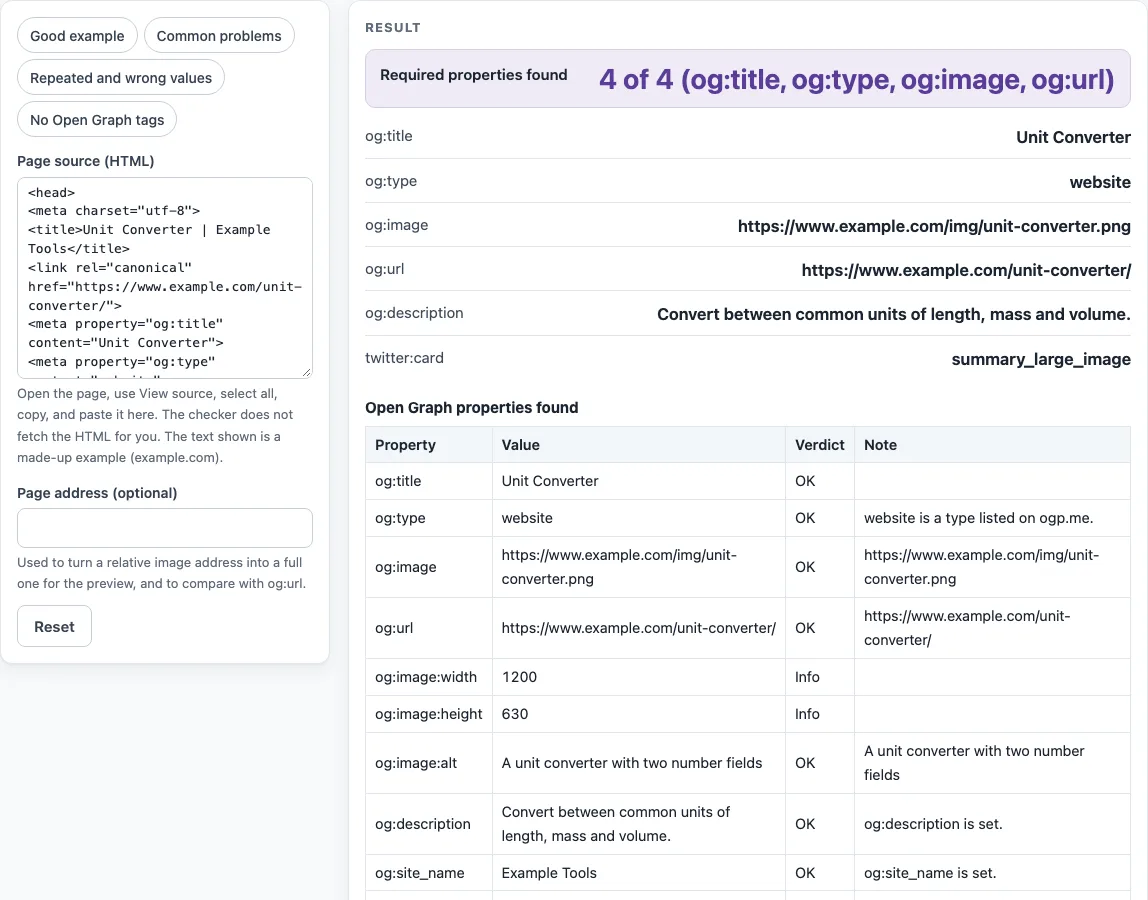
How to use the Open Graph checker
- Open the page you want to check and view its HTML source. In most browsers, right-click the page and choose the option to view the page source.
- Copy all of the source and paste it into Page source (HTML). The field accepts up to 3 million characters.
- Optional: type the page’s web address into Page address (optional). This turns a relative og:image into a full address and compares og:url with the address you typed.
- Read Required properties found. It shows a count such as “4 of 4” and names the four required properties.
- Go through Open Graph properties found. Each row lists the Property, its Value, a Verdict and a Note.
- Check the Checks table and the Twitter card tags table for any row marked Problem or Review.
- Press Show preview under Approximate share card. Only after you press it does your browser request the og:image from its host.
- Compare “Loaded image: W × H px” with the og:image:width and og:image:height you declared.
The four chips above the input show example results: Good example, Common problems, Repeated and wrong values, and No Open Graph tags. Use them to see how each kind of verdict looks before you test your own page.
What are the required Open Graph tags?
The Open Graph protocol at ogp.me requires four properties: og:title, og:type, og:image and og:url. Each must appear as a meta element with a property and a content value in the head of the page. The checker marks a missing, empty or late tag as a Problem, and a tag placed after the head has ended counts as missing. Other properties, such as og:description, og:site_name and og:locale, are optional.
How do I check my og:image?
Paste the page source and find the og:image row in Open Graph properties found. Its Verdict and Note show what the checker found. A relative address is marked Review and resolves against the page’s base href or the address you typed. An http:// address without og:image:secure_url is also marked Review. To confirm that the picture loads, press Show preview; if the request fails, the page says so.
Why is my og:image not showing when shared?
The checker flags the most common causes: a relative image address, an http:// address, missing required tags and tags placed outside the head. Fix every Problem and Review row first, then press Show preview to confirm the image loads. The checker cannot see the cache of the network you shared to, so an old card can stay in place until that network refreshes its copy.
Does og:image need width and height?
No. ogp.me lists og:image:width and og:image:height as optional structured properties. The checker marks them OK when both are whole numbers, Review when only one is given or the value is not numeric, and Info when neither is given. Declared sizes give you a figure to compare against the “Loaded image: W × H px” line after you press Show preview.
What is og:type website vs article?
Both values appear on the og:type list at ogp.me. Use article for an article, such as a blog post or news story, and website for a site or a page that has no more specific type. The checker compares og:type with the ogp.me list, which also includes values such as video.movie and music.song, and marks any other value Review.
Are og tags used by Google?
Google documents that it may use og:title as one of the sources for a title link in search results. Open Graph tags are otherwise used by social networks and messaging apps to build link previews. The checker does not test how search engines treat a page.
Sources (checked 13 October 2026): Open Graph protocol · Google Search Central
Worked examples
| Input | Result |
|---|---|
| page source, 841 characters | 4 of 4 (og:title, og:type, og:image, og:url) |
| page source, 158 characters | 3 of 4 (og:title, og:type, og:image, og:url) |
| page source, 296 characters | 4 of 4 (og:title, og:type, og:image, og:url) |
| page source, 40 characters | 0 of 4 (og:title, og:type, og:image, og:url) |
Calculated by the tool above; open it with the same values to see each step.
Frequently asked questions
Does the checker send my page source anywhere?
No. Pasted HTML is processed in your browser and is never sent. The only outside request happens when you press Show preview: your browser asks the image’s host for the image, and no referrer is sent.
Do I need to fill in Page address (optional)?
No. Leave it empty if your og:image and og:url are full addresses. Fill it in when og:image is relative, so the checker can resolve the image and compare og:url with the address you typed.
Can the checker crawl my whole site?
No. It checks one page source at a time, and you paste that source yourself. To check another page, paste that page’s source.
Why does the preview need a button?
Loading the og:image means asking another site for the picture, which tells that site your IP address. The checker waits until you press Show preview so that nothing leaves your browser unless you choose it.
Is the share card preview the same on every network?
No. The preview is approximate. Each network draws its own card with its own sizes and cropping, and this tool does not state per-network image sizes.
Related tools
- Meta tag checker: use it to review your title and description meta tags alongside your Open Graph tags.
- Schema markup generator: use it to create structured data for a page once its sharing tags are correct.
- FAQ schema generator: use it to create FAQPage structured data for questions and answers on a page.
- Local business schema generator: use it to create structured data for a business with a physical location.
- Organization schema generator: use it to create structured data that describes your organization.
- hreflang generator: use it to create hreflang link tags for pages that exist in several languages or regions.