Robots.txt Example Files
Pick a robots.txt example to see the file, what each line means and which paths it blocks.
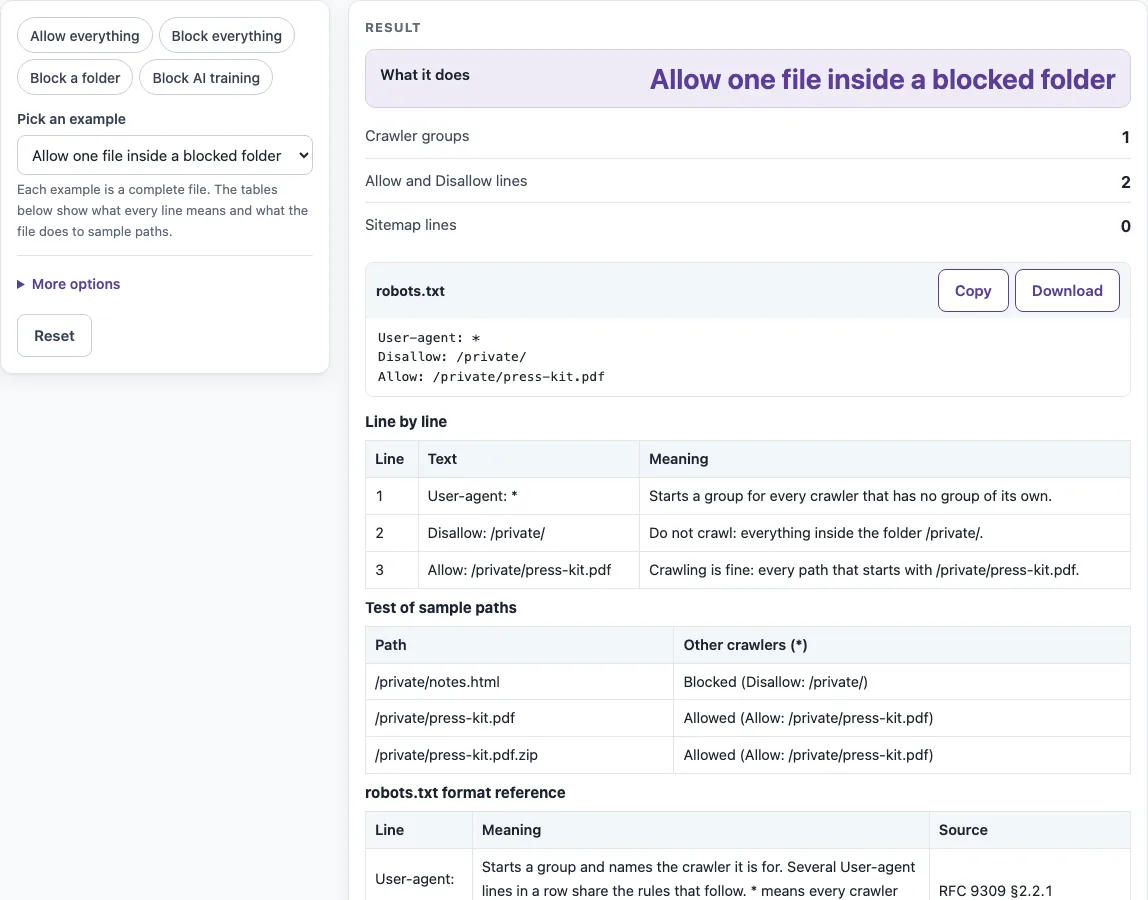
How to use the robots.txt example tool
- Open the Pick an example menu and choose one of the 12 examples. To start simpler, pick one of the presets: Allow everything, Block everything, Block a folder, or Block AI training.
- Read the complete file in the robots.txt code block.
- Check What it does for a plain summary of the rules.
- Look at Crawler groups to see which user agents each group targets.
- Review Allow and Disallow lines and Sitemap lines to find the rules in the file.
- Open the Line by line table to see the meaning of each source line.
- Read Test of sample paths. It shows three sample paths per example, tested for the crawlers named in that example.
- To test your own addresses, open More options and enter them under Your own paths to test (optional).
- Select Copy or Download to take the file.
The robots.txt format reference table explains the syntax, and Path matching, from Google’s documentation shows how specific rules match URLs.
The sample paths are tested with the same matching rules as the robots.txt tester: one group per crawler, longest matching path wins, and Allow wins a tie. When you change an example for your own site, check your real URLs in Your own paths to test (optional) before you upload the file, because one missing slash can block more than you meant.
What does a robots.txt look like?
A robots.txt is a plain text file named robots.txt, placed at the root of a host, such as https://www.example.com/robots.txt. The simplest complete file has two lines: User-agent: * and Disallow:. The User-agent line names the crawlers the rules apply to, where * means all crawlers, and an empty Disallow blocks nothing.
How do I block a folder?
Add a Disallow line with the folder path and a trailing slash, such as Disallow: /private/, under a User-agent group. The trailing slash makes it a folder rule, so /private/ does not match /private. Rules match from the start of the path.
How do I block one file type?
Use a wildcard and a dollar sign, such as Disallow: /*.pdf$. The * matches any characters, and $ ends the match. This blocks /a.pdf but not /a.pdf?x=1.
How do I allow one page inside a blocked folder?
Add an Allow line with a longer, more specific path. With Disallow: /private/ and Allow: /private/press-kit.pdf, the longest path wins. /private/notes.html stays blocked, and /private/press-kit.pdf is allowed.
How do I block a single bot?
Give that crawler its own group with Disallow: /, then add a * group for everyone else. A crawler with its own group ignores the * group. The examples use tokens such as CCBot, GPTBot and ClaudeBot.
Where does the Sitemap line go?
A Sitemap line can go anywhere in the file, because it is not part of a group. It must use an absolute address, such as https://www.example.com/sitemap.xml.
What is the format/syntax?
A file is made of groups. Each group starts with one or more User-agent lines, followed by Allow or Disallow lines. A # starts a comment (RFC 9309 §2.2). Google’s table lists /fish* as the same as /fish, and /fish/ matches paths inside the folder but not /fish.
Sources (checked 13 October 2026): RFC 9309 · OpenAI crawler docs · Google Search Central · Common Crawl
Worked examples
| Input | Result |
|---|---|
| Allow one file inside a blocked folder | Allow one file inside a blocked folder |
| Block a file type | Block a file type |
| Block AI training crawlers | Block AI training crawlers |
Calculated by the tool above; open it with the same values to see each step.
Frequently asked questions
Can I add comments?
Yes. Add a # where you want the comment to start, and write your note after it. Use comments to explain why a rule exists.
Does Disallow: / keep a site out of Google Search?
No. It is a request to compliant crawlers, not access control. A blocked URL can still appear in results if other pages link to it, and Google advises using password protection to keep content private.
Does Crawl-delay work?
Google’s documentation lists user-agent, allow, disallow and sitemap as supported fields and says crawl-delay is not supported.
How large can the file be?
Crawlers should parse at least 500 KiB, and Google ignores content after 500 KiB. The file must be UTF-8 plain text at /robots.txt of the host (RFC 9309 §2.3).
Can I use one of these files as it is?
“Allow everything” and “Block everything” work unchanged. The others contain example paths such as /private/ and example.com addresses, so replace them with your own folders and sitemap URL. Then test a few real addresses before you upload the file to /robots.txt.
Does Google-Extended affect Google Search?
No. Google-Extended is a control token with no separate user-agent string, and it does not affect inclusion in Google Search.
Related tools
- robots.txt generator: Build your own robots.txt file when you know which paths and crawlers to block.
- robots.txt tester: Check whether specific paths are allowed or blocked by a robots.txt file.
- Sitemap finder: Find the sitemap address of a site so you can add it to a Sitemap line.
- Noindex checker: Check whether a page carries a noindex instruction, which robots.txt cannot provide.
- XML sitemap generator: Create an XML sitemap to list the pages you want search engines to find.
- Sitemap validator: Check that a sitemap file follows the sitemaps.org format before you reference it.