Typo Generator
Type a keyword to get a list of misspelled variants to check against search volume.
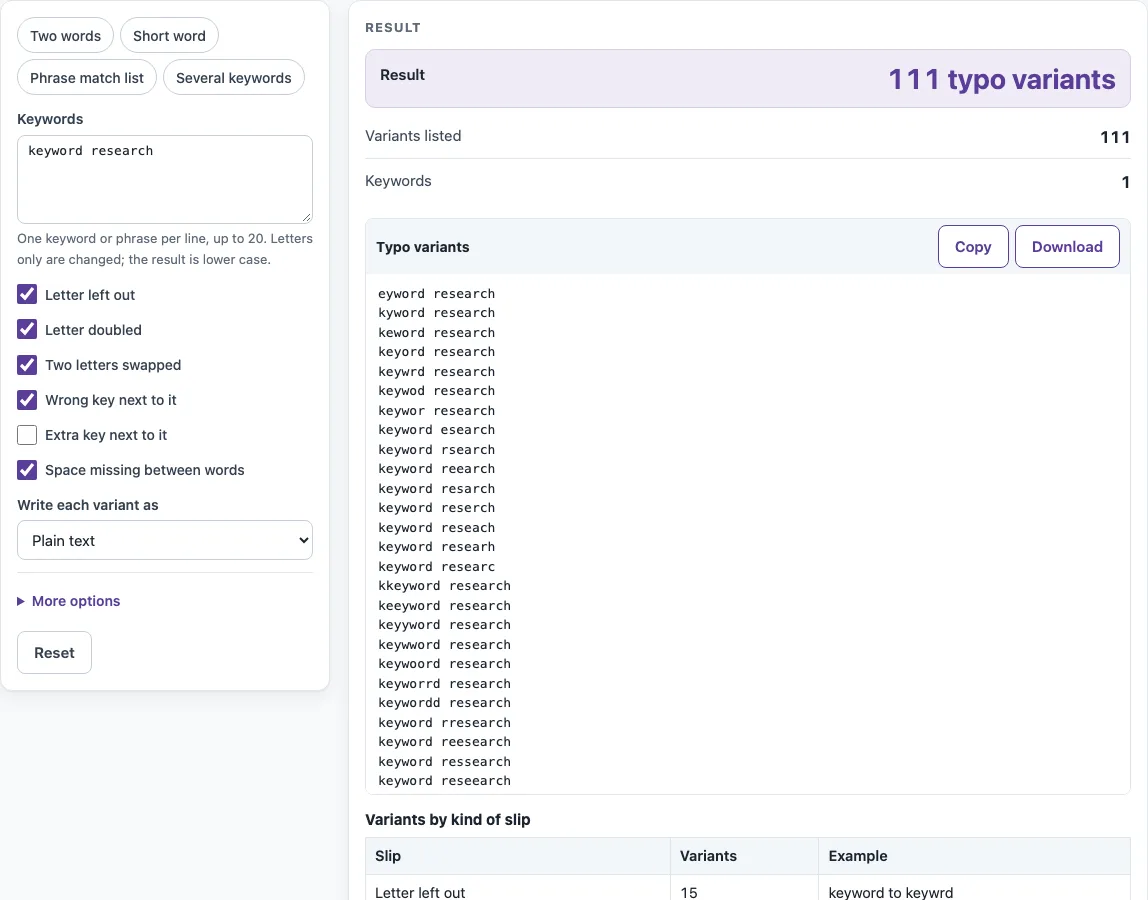
How to use the typo generator
- In Keywords, type one keyword or phrase per line. You can enter up to 20. The text is lower-cased, and repeated keywords are listed once.
- Tick the slips you want. Letter left out, Letter doubled, Two letters swapped, Wrong key next to it and Space missing between words are ticked by default. Extra key next to it is off until you tick it.
- Under Write each variant as, choose Plain text, “phrase match” or [exact match].
- Open More options. Pick a Keyboard layout (QWERTY, QWERTZ or AZERTY). Set Most variants per keyword to 25, 50, 100, 250 or 500 (the default is 250). Tick Keep the first letter of the phrase correct if you want the opening letter left alone.
- Read the Result line, such as “111 typo variants”, along with Variants listed and Keywords.
- Check the Variants by kind of slip table to see how many variants each slip made and an example of each.
- Press Copy on the Typo variants code block, or choose Download to save typo-variants.txt, with one variant per line.
The preset chips (Two words, Short word, Phrase match list and Several keywords) load common setups so you can start faster. When you enter several keywords, the Variants per keyword table shows how many variants were found and how many were listed for each one.
What is a typo generator used for?
A typo generator makes misspelled versions of a word or phrase so you can see which mistakes people might make when searching. The list can serve as candidates for misspelling keyword research. The tool builds the candidates quickly, but it cannot tell you whether anyone searches for them.
How does the tool make typos?
It applies six rules, each one a common typing slip. Using the word “keyword” as the example:
- Letter left out gives keywrd. A word of two letters or fewer is left whole.
- Letter doubled gives keyyword.
- Two letters swapped gives keywrod.
- Wrong key next to it replaces a letter with a key beside it. The w in “keyword” can become q, e, a or s, giving keyqord.
- Extra key next to it adds a neighbouring key before or after a letter, giving kreyword.
- Space missing between words joins two words, so “key word” becomes keyword.
“Next to” means the keys on the left and right in the same row, plus the two keys above and the two below on the staggered rows. On QWERTY, g has f, h, t, y, v and b beside it. Only letters change. Digits and symbols stay as they are.
A variant that two slips both produce is listed once, under the first slip. The original keyword is never included in the list. If a keyword has more variants than your limit, the first ones are listed and a notice says how many were found.
Are these the misspellings people really search?
Not necessarily. The variants come from rules, not from search data, and most rule-made typos are never typed by real people. Treat the list as candidates, and check the search volume of any variant in a keyword tool before you use it. The page shows this notice every time.
How do I use the list in Google Ads?
Choose the match type in Write each variant as first, so every line already has the right symbols. Google Ads help describes phrase match with quotation marks, as in “tennis shoes”, and exact match with square brackets, as in [red shoe]. Broad match has no symbols, so you simply enter the keyword. The Google Ads help page says nothing about misspellings, so this page makes no claim about how Google Ads will match them.
Does it work for phrases and other keyboard layouts?
Yes. In a phrase, only one word changes at a time, so the other words stay correct. Tick Keep the first letter of the phrase correct if you also want the opening letter left alone. The keyboard layout changes which keys count as neighbours: QWERTZ swaps the y and z keys, and AZERTY has its own letter rows. Only letters are mapped to neighbouring keys in each layout.
Source (checked 18 October 2026): About keyword match types, Google Ads Help
Worked examples
| Input | Result |
|---|---|
| keyword research | 111 variants, such as eyword research, kyword research, keword research |
| seo | 46 variants, such as eo, so, se |
| meta description | 50 variants, such as "eta description", "mta description", "mea description" |
| robots txt | 57 variants, such as [rbots txt], [roots txt], [robts txt] |
Calculated by the tool above; open it with the same values to see each step.
Frequently asked questions
How many keywords can I enter?
Up to 20, one per line. A longer list shows an error, and so does a keyword longer than 60 characters.
Why are fewer variants listed than were found?
Most variants per keyword limits each keyword to 25, 50, 100, 250 or 500 variants, and 250 is the default. When a keyword has more, the first ones are listed and a notice says how many were found. Raise the limit under More options to see all of them.
Does it change capital letters?
Yes. The text is lower-cased before the slips are made, so every variant is lower case.
What happens to digits, symbols and accented letters?
Digits and symbols are left alone. Letters with accents can be doubled or swapped, but only the plain letters a to z have neighbouring keys in the layouts, so a wrong or extra key is not made for an accented letter.
Why does a slip I ticked make no variants?
A slip makes nothing when the keyword has no place for it. For example, a single word has no space to leave out, and a two-letter word is not shortened. The table Variants by kind of slip shows the count for each slip.
Does the tool send my keywords anywhere?
No. It runs in your browser, and nothing you type is sent anywhere.
Related tools
- Meta tag generator — Build the title, description, robots and share tags for a page.
- SEO audit template — Work through a checklist of search basics and get a score and a report.
- Title tag length checker — Count the characters in a title and estimate its width.
- Meta description length checker — Count the characters in a description and estimate its width.
- Internal link checker — Check the links on a page.
- Schema markup generator — Build JSON-LD structured data for a page.